
Baby Monitor App for Two Android Phones: Setup in 5 Minutes
Connect both Android phones to the same Wi-Fi, open Camera on the nursery phone, then add it from Monitor on the parent phone. Leya can find the camera automatically, or you can pair by QR code or IP address and PIN.
Two Android phones can cover the basic jobs of a baby monitor: one stays in the room as the camera, and the other lets you watch and listen from elsewhere at home. With Leya Baby Monitor, both devices use the same Wi-Fi network and pair directly. There is no cloud relay, and the router does not need an internet connection.
The title says “in 5 minutes,” but the exact time depends on your phones and Wi-Fi. If both phones are ready and already connected to the same network, pairing is a short setup. Give yourself time to check the camera view and sound before relying on it.
What you need
- Two Android phones with Leya Baby Monitor installed.
- A Wi-Fi router both phones can join. Internet access is not required; the router and local Wi-Fi need to be on.
- A safe, stable place for the camera phone, plus a charger if you plan to keep it running while plugged in.
The camera phone needs Android 8.0 or newer. Keep the phone and its charging cable at least one metre from the crib and out of the child’s reach. A monitor is not a medical device and does not replace safe-sleep practices or appropriate supervision.
Set up the camera phone
Place the first phone in the room you want to monitor. Open Leya Baby Monitor and choose Camera. Keep the app open while you pair the second phone. Allow the camera and microphone permissions needed for the functions you use.
Before leaving the phone in place for the night, check the framing from the parent phone. Aim to see the sleep space clearly without putting the device or cable near the crib. If you are charging it, route the cable away from the child’s reach.
Pair the parent phone
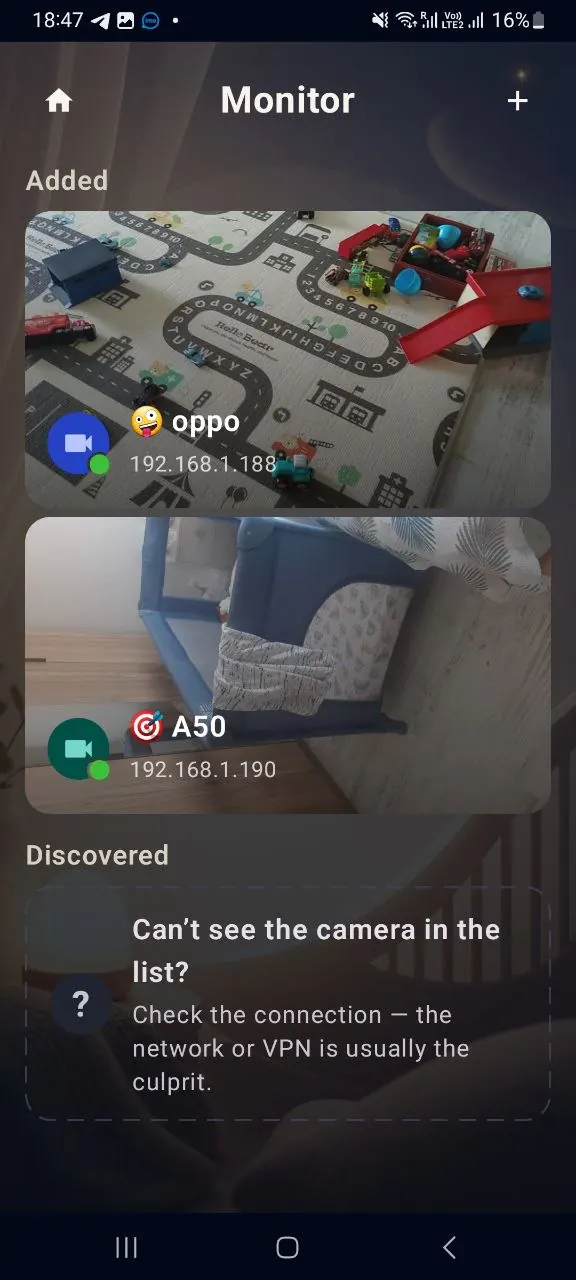
Connect the second phone to the same Wi-Fi network. Open Leya Baby Monitor, choose Monitor, and add a camera. Try automatic discovery first. When the camera appears, select it and follow the pairing prompt.
You can also scan the QR code displayed on the camera phone or enter the camera’s IP address and PIN. The PIN is entered once during pairing; you normally will not need to enter it again. If you move the devices to a different Wi-Fi network, pair them again using the PIN shown by the camera. These pairing methods work inside the local network and do not make the camera available from outside your home Wi-Fi.
When pairing finishes, open the camera and check both the picture and sound from the room where you expect to watch. Keep the app open during this first check so you can quickly correct the network or camera placement if needed.
If the camera does not appear
- Confirm that both phones are connected to the same Wi-Fi network. A phone on mobile data or a separate guest network may not be able to find the camera.
- Make sure the camera phone is in Camera mode and the app is open.
- Check whether a VPN or router setting that isolates connected devices is preventing local discovery. Guest-network isolation and client isolation can block devices from seeing one another.
- Use the QR code or enter the camera’s IP address and PIN instead of waiting for discovery. After successful pairing, the PIN does not need to be entered on every connection.
Leya’s local connection is intended for devices on the same Wi-Fi network. It is not a way to watch from an office or another network. If your aim is to check in while away from home, this local-only setup will not provide that remote view.
Do one final check
Before bedtime, leave the camera phone where it will be used and watch from the parent phone for a few minutes. Confirm that the view covers the area you need, that you can hear the room, and that both devices stay connected on your Wi-Fi. If the picture or sound is unreliable, adjust the phone or network setup and check again.
Video and audio travel directly between the paired devices over the local network. LeyaSoft does not receive the stream, and Leya does not use a cloud relay. That keeps the setup limited to your home network, which is also why both phones need to remain on the same Wi-Fi.
For a broader guide to choosing a spare camera phone and placing it safely, see How to Turn an Old Android Phone into a Baby Monitor. For a comparison with a dedicated monitor, see Phone as Baby Monitor vs. Dedicated Baby Monitor.
FAQ
Do both phones need internet access?
No. They need the same working Wi-Fi network, but the router does not need an internet connection for local video and audio.
Do I have to enter the PIN every time?
No. The PIN is entered once when you pair the devices. You normally do not need it again unless you change the Wi-Fi network and pair the devices again.
Can I watch from outside the home?
No. This setup works between devices on the same Wi-Fi network and does not provide a view from another network.
Does the camera phone work in a dark room?
There is no infrared night vision. Leya can raise camera sensitivity and use the phone flashlight, but the result depends on the phone and some light helps.